START HERE
Windows receiver
Your PC becomes the classroom display for your tablet.
Download for WindowsOne-time activation required. Current release candidate; installer is unsigned.
Microsoft Store listing planned
YOUR TABLET. YOUR CLASSROOM.
Mirror your iPad or Android screen to Windows. Bring handwritten notes, diagrams and teaching apps into your lesson—and capture them with OBS.
₹1,000 one-time receiver activation · No subscription
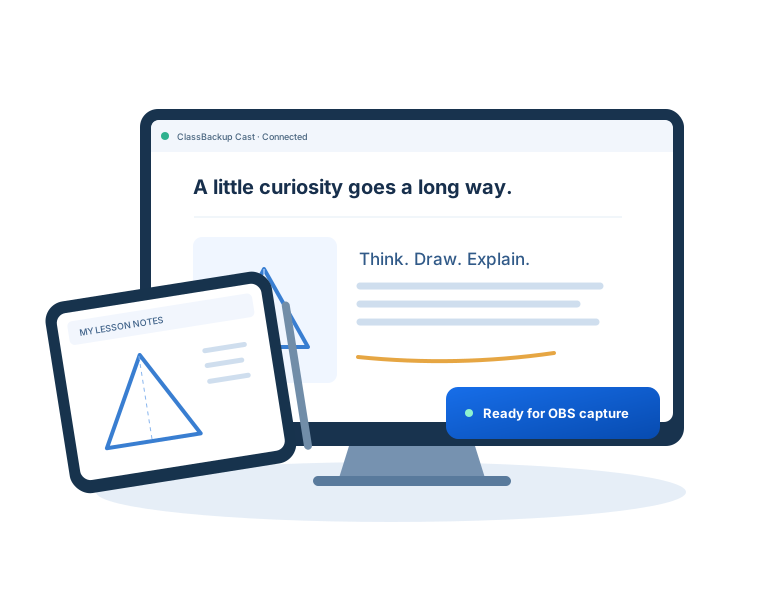
Write on your tablet. Teach from your PC.
DOWNLOADS
Install the receiver on your PC.
Add the sender only if you use Android.
Your PC becomes the classroom display for your tablet.
Download for WindowsOne-time activation required. Current release candidate; installer is unsigned.
Microsoft Store listing planned
Share your tablet screen with the ClassBackup receiver.
Download Android APKDirect APK install; development-signed. Video sharing only. Device testing is ongoing.
Google Play listing planned
You only need the Windows receiver. Open Control Center → Screen Mirroring → your receiver name.
Download from our public GitHub release. SHA-256 checksums let you verify file integrity.
ClassBackup-Cast-Setup.exe7f64b3376544ba03d03f9757f5280d5d21984ec48ea777953941ee71b1f2d5db
ClassBackup-Cast-Sender.apk6f05486ef3ec58ac81860774187bff4e5113585130a48a94e527b9c429da3f32
Includes the modified GPL-3.0-or-later UxPlay engine; licence notices accompany the source and installer.
READY BEFORE CLASS
Install and activate the Windows receiver. In Settings → Receiver name, choose a name your students and teachers can recognise.
Keep the PC and tablet on the same trusted local Wi-Fi. Avoid guest networks that isolate devices. Allow ClassBackup Cast through your local firewall.
iPad: Control Center → Screen Mirroring. Android: open ClassBackup Cast Sender → choose your PC → Start sharing. Approve Android’s sharing prompt.
One lesson, ready to capture.
BUILT AROUND YOUR LESSON
Use your favourite tablet whiteboard or notes app. Mirror it to your PC, then add ClassBackup Cast - Output as a Window Capture source in OBS Studio.
Add a microphone source for your explanation. Android currently shares video only; AirPlay supports audio and video. OBS handles recording and streaming separately.
Need help with your teaching setup?Test your device and a full lesson before going live. OBS is a separate application.
KNOW YOUR SETUP
| Device or workflow | What you need | Current support |
|---|---|---|
| Receiving PC | Windows x64 + receiver | One active sender at a time |
| iPad → PC | Built-in AirPlay Screen Mirroring | Video and audio; iPad video and sizing checked locally |
| Android → PC | Android 10+ + sender APK | Video only; broader device testing in progress |
| Lesson recording | OBS Window Capture + microphone | Test your full recording setup before class |
| Network | Same trusted local network | Android video is unencrypted; avoid public Wi-Fi |
This release does not receive Google Cast or Miracast. Mac and Linux receiver downloads are not available.
ONE-TIME RECEIVER ACTIVATION
Activate once for your Windows account on this PC. Downloading the installer does not activate the receiver.
Activation stays saved through app updates. A different Windows account or Windows reinstall may need reactivation. After activation, connecting a tablet requires no receiver password.
A FEW HELPFUL ANSWERS
Questions about your classroom setup?
Talk to ClassBackupInstall and activate ClassBackup Cast on your Windows PC. Connect the iPad and PC to the same trusted local network. On iPad, open Control Center, select Screen Mirroring, then choose your receiver name. No extra iPad app is needed.
Install the Windows receiver and the ClassBackup Cast Sender APK on your Android tablet. Connect both devices to the same trusted network. The sender finds nearby PCs automatically. Select your PC, tap Start sharing, and approve Android’s screen-sharing prompt. The current sender shares video only.
The files are available to download, but the receiver needs ₹1,000 one-time activation before casting. Contact ClassBackup to arrange purchase and receive activation instructions. Activation is saved for the current Windows account on that PC; a different account or Windows reinstall may require reactivation.
Yes. After connecting your tablet, add a Window Capture source in OBS Studio and select ClassBackup Cast - Output. Add your microphone separately, especially for Android, which sends video only. Recording is handled by OBS, not by the receiver. Test your complete lesson setup before class.
The receiver is for Windows x64 PCs. iPad connects using AirPlay screen mirroring, and Android 10+ tablets use the separate sender APK. iPad video and window fitting have been checked locally. Broad Android model testing is still in progress; compatibility with every device is not guaranteed.
Keep both devices on the same local network and check that the receiver is open and activated. Guest Wi-Fi, client isolation, VPNs or firewall settings can prevent discovery. Allow the app on your trusted network, and use Settings → Receiver name to give your PC a recognisable name.
Not yet. Current downloads are hosted on the official ClassBackup-Cast GitHub repository. The Windows installer is unsigned and the Android APK is development-signed. Store listings are planned; links will be added only when published.
This release uses AirPlay for iPad and the ClassBackup sender for Android. It does not provide Google Cast or Miracast receiving, and displays one active sender at a time. Android screen video is unencrypted, so use a trusted private network.

Launch your own branded teaching app, LMS and website with ClassBackup.